
GitHub Integration
GuideMode integrates with GitHub to provide comprehensive visibility into your development workflow. This integration enables organization sync, pull request tracking, issue management, and deployment analytics for DORA metrics.
What You Get
Section titled “What You Get”- Organization & Team Sync: Automatically sync your GitHub organization members and teams to GuideMode
- Pull Request Tracking: Link AI coding sessions to pull requests for end-to-end traceability
- Issue Tracking: Monitor issues and their lifecycle through your workflow
- Deployment Tracking: Capture deployment events for DORA metrics (lead time, deployment frequency)
- Label Mapping: Map your GitHub labels to GuideMode’s analytical categories
Prerequisites
Section titled “Prerequisites”Before setting up the GitHub integration, you’ll need:
- A GitHub account with admin access to your organization
- Admin permissions in your GuideMode tenant
Setup Overview
Section titled “Setup Overview”The GitHub integration uses two components that GuideMode has already configured:
- GitHub OAuth - For logging in with your GitHub account
- GuideMode GitHub App - For organization sync, webhooks, and repository access
You simply need to connect your account and install the app on your organization.
Step 1: Connect with GitHub
Section titled “Step 1: Connect with GitHub”- Navigate to Settings > Integrations > GitHub in GuideMode
- Click Connect with GitHub
- Authorize GuideMode to access your GitHub account
- You’ll be redirected back to GuideMode once connected
Step 2: Install the GitHub App
Section titled “Step 2: Install the GitHub App”After connecting your account, install the GuideMode GitHub App on your organization:
- In Settings > Integrations > GitHub, click Install GitHub App
- Choose your organization or personal account
- Select which repositories to grant access to:
- All repositories: Recommended for full visibility
- Selected repositories: For limited access
- Click Install to complete
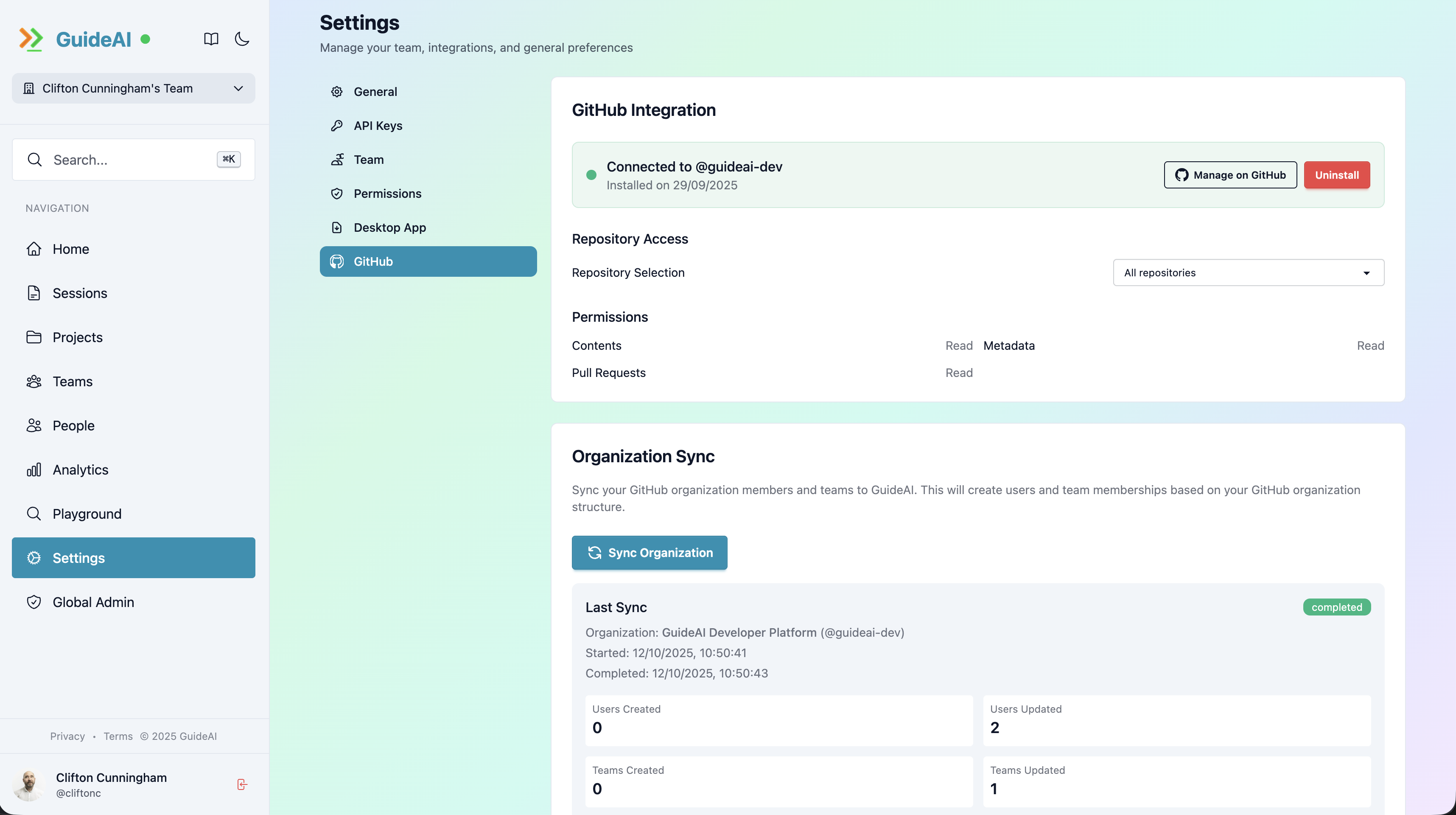
Organization Sync
Section titled “Organization Sync”After installing the GitHub App, you can sync your organization:
What Gets Synced
Section titled “What Gets Synced”- Members: All organization members are created as users in GuideMode
- Teams: GitHub teams are mirrored to GuideMode teams
- Team memberships: Member roles (member/maintainer) are preserved
- Repository links: Team repositories are linked to GuideMode projects
Triggering a Sync
Section titled “Triggering a Sync”- Go to Settings > Integrations > GitHub
- Click Sync Organization
- Wait for the sync to complete (status shows progress)
Syncs run automatically when:
- A new member joins the organization
- Team memberships change
- Teams are created or modified
Pull Request Integration
Section titled “Pull Request Integration”When a pull request is opened in a repository where GuideMode has detected a coding session, the integration adds context to the PR:
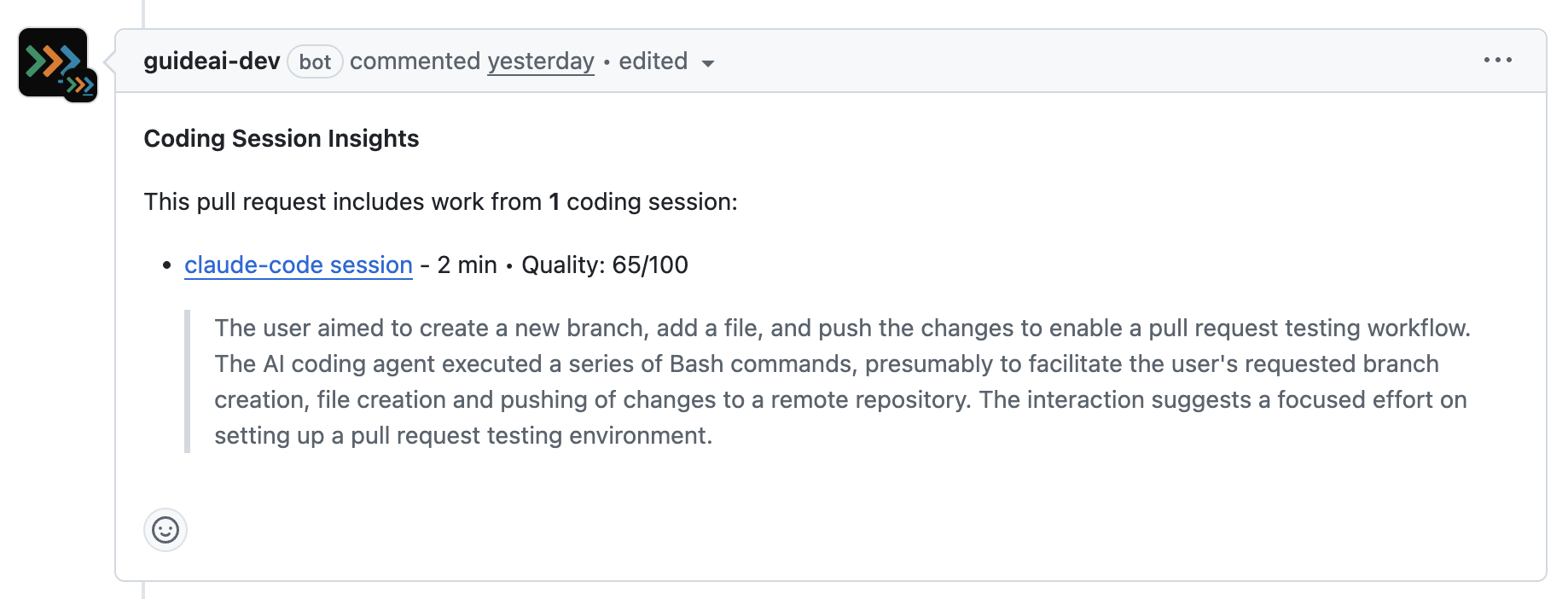
This provides end-to-end traceability from AI session through to deployed code.
Requirements:
- Session data must be synced (at least Metrics Only mode)
- For full auditability, enable Full Transcript sync
Label Mapping
Section titled “Label Mapping”GuideMode maps GitHub labels to canonical issue types for consistent analytics across projects.
How It Works
Section titled “How It Works”Labels are matched using pattern-based heuristics. See Issues → Type Mapping for:
- The six canonical types (feature, bug, chore, discovery, incident, other)
- Default label patterns for each type
- How custom mappings override defaults
Custom Label Mappings
Section titled “Custom Label Mappings”You can configure custom mappings per project or globally for your tenant. Custom mappings take priority over default heuristics.
To configure custom mappings, go to Settings > Integrations > GitHub > Label Mappings.
Webhook Events
Section titled “Webhook Events”The GuideMode GitHub App receives real-time updates via webhooks. Here’s what gets captured:
Supported Events
Section titled “Supported Events”| Event | Actions | What’s Captured |
|---|---|---|
issues | opened, edited, closed, reopened, labeled, unlabeled | Issue lifecycle and type changes |
pull_request | opened, synchronize, reopened, closed, edited | PR lifecycle, additions/deletions |
pull_request_review | submitted, edited, dismissed | Review feedback |
deployment | created | Deployment events for DORA metrics |
deployment_status | created | Success/failure status |
member | added, removed | Organization membership |
membership | added, removed | Team membership changes |
team | created, deleted, edited | Team lifecycle |
repository | created, deleted, archived | Repository changes |
installation | created, deleted, suspended | App installation status |
DORA Metrics
Section titled “DORA Metrics”Deployment events power DORA metrics calculations:
- Deployment Frequency: How often you deploy to production
- Lead Time for Changes: Time from commit to production
- Change Failure Rate: Percentage of deployments causing issues
- Time to Restore: How quickly you recover from failures
Repository Configuration
Section titled “Repository Configuration”Each project can be configured for what to sync. Go to Settings > Projects and select a project to configure:
| Setting | Description |
|---|---|
syncIssues | Enable/disable issue tracking |
syncPullRequests | Enable/disable PR tracking |
syncDeployments | Enable/disable deployment tracking |
Troubleshooting
Section titled “Troubleshooting”GitHub Login Fails
Section titled “GitHub Login Fails”- Try disconnecting and reconnecting your GitHub account in Settings > Integrations > GitHub
- Ensure you’re logged into the correct GitHub account
- Check that you have authorized GuideMode to access your account
Sync Fails
Section titled “Sync Fails”- Verify the GitHub App is installed on the organization
- Ensure you have admin access to the organization
- Check that the app has the required permissions (if prompted, approve any permission updates)
- Review sync logs in GuideMode for specific errors
Missing Team Data
Section titled “Missing Team Data”- Trigger a manual sync from Settings > Integrations > GitHub
- Check that teams exist in the GitHub organization
- Verify you have access to view the teams
Labels Not Mapping Correctly
Section titled “Labels Not Mapping Correctly”- Review your custom mappings in Settings > Integrations > GitHub > Label Mappings
- Check that label names match (case-insensitive)
- Use default heuristics as a guide for naming labels
Related Documentation
Section titled “Related Documentation”Core Concepts
Section titled “Core Concepts”- Issues - Canonical issue types and lifecycle
- Pull Requests - PR states and metrics
- Deployments - Deployment tracking for DORA metrics
- Teams - Team structure and sync
Analytics
Section titled “Analytics”- Delivery Flow - Issue and PR metrics
- Deployment Flow - Deployment analytics
- DORA Metrics - DevOps performance benchmarks