
Survey Scheduling
Survey schedules define when surveys are sent, who receives them, and which questions are asked. This page covers all scheduling options and targeting configurations.
Schedule Types
Section titled “Schedule Types”GuideMode supports three scheduling patterns:
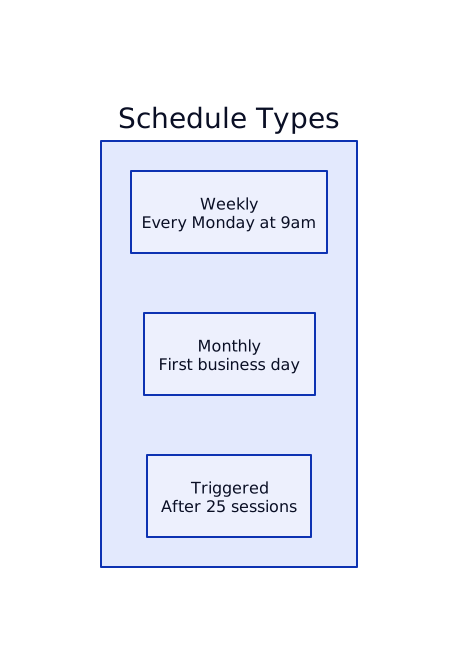
Weekly Schedules
Section titled “Weekly Schedules”Send surveys on the same day each week.
| Field | Type | Description |
|---|---|---|
dayOfWeek |
0-6 | 0 = Sunday, 1 = Monday, …, 6 = Saturday |
timeOfDay |
HH:MM | 24-hour format (e.g., “09:00”) |
Example: Every Monday at 9am
{ "scheduleType": "weekly", "dayOfWeek": 1, "timeOfDay": "09:00"}Monthly Schedules
Section titled “Monthly Schedules”Send surveys on the same business day each month.
| Field | Type | Description |
|---|---|---|
dayOfMonth |
1-31 | Business day number (skips weekends) |
timeOfDay |
HH:MM | 24-hour format |
Example: First business day at 10am
{ "scheduleType": "monthly", "dayOfMonth": 1, "timeOfDay": "10:00"}Triggered Schedules
Section titled “Triggered Schedules”Send surveys based on user activity rather than calendar.
| Trigger Type | Description | Configuration |
|---|---|---|
session_count |
After N AI sessions uploaded | { "type": "session_count", "threshold": 25 } |
Example: After every 25 sessions
{ "scheduleType": "triggered", "triggerConfig": { "type": "session_count", "threshold": 25 }}Targeting
Section titled “Targeting”Surveys can target different audiences:
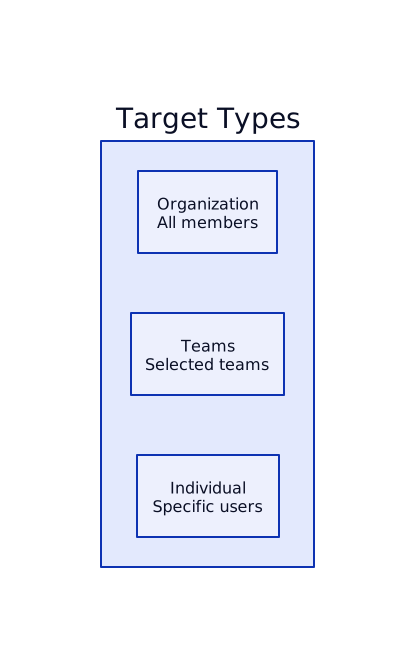
Organization Targeting
Section titled “Organization Targeting”All organization members receive the survey.
{ "targetType": "organization"}Use case: Company-wide pulse checks, quarterly health surveys.
Team Targeting
Section titled “Team Targeting”Only members of selected teams receive the survey.
{ "targetType": "teams", "targetTeamIds": ["team-uuid-1", "team-uuid-2"]}Features:
- Only enabled teams receive surveys
- Members are deduplicated across teams
- Users in multiple targeted teams get one survey
Use case: Team-specific feedback, project retrospectives.
Individual Targeting
Section titled “Individual Targeting”Specific named users receive the survey.
{ "targetType": "individual", "targetUserIds": ["user-uuid-1", "user-uuid-2"]}Use case: Targeted follow-ups, new hire onboarding surveys.
Fatigue Prevention
Section titled “Fatigue Prevention”GuideMode prevents survey overload with built-in limits:
| Setting | Default | Description |
|---|---|---|
surveyMinimumIntervalDays |
7 | Days between surveys for same user |
surveyMaxActivePerUser |
1 | Maximum pending surveys per user |
These are configured at the organization level in Settings → Organization → Survey Settings.
Prevention Rules
Section titled “Prevention Rules”Before creating a new survey instance:
- Check active count - User has fewer than
surveyMaxActivePerUserpending surveys - Check interval - User’s last completed survey was more than
surveyMinimumIntervalDaysago - Check duplicates - No existing instance for same schedule + due date
Schedule Fields Reference
Section titled “Schedule Fields Reference”| Field | Type | Required | Description |
|---|---|---|---|
name |
string | Yes | Schedule display name |
description |
string | No | Optional description |
surveyType |
string | No | Type of survey (default: ‘team_experience’) |
purpose |
enum | No | Survey purpose category |
scheduleType |
enum | Yes | ‘weekly’, ‘monthly’, ‘triggered’ |
dayOfWeek |
integer | Weekly | 0 (Sunday) to 6 (Saturday) |
dayOfMonth |
integer | Monthly | 1-31 (business day number) |
timeOfDay |
string | Yes | “HH:MM” format (24-hour) |
triggerConfig |
object | Triggered | Trigger configuration |
targetType |
enum | Yes | ‘organization’, ‘teams’, ‘individual’ |
targetTeamIds |
uuid[] | Teams | Team IDs to target |
targetUserIds |
uuid[] | Individual | User IDs to target |
isActive |
boolean | No | Whether schedule is active (default: true) |
Question Configuration
Section titled “Question Configuration”Each schedule can customize which questions are asked:
{ "questionConfig": { "version": "1.0", "questions": [ { "id": "overall_productivity", "enabled": true, "order": 1 }, { "id": "job_satisfaction", "enabled": true, "order": 2 }, { "id": "ai_tool_impact", "enabled": false, "order": 3 } ] }, "randomizeQuestionOrder": true, "textQuestionsAtEnd": true}| Setting | Default | Description |
|---|---|---|
randomizeQuestionOrder |
true | Randomize question order per response |
textQuestionsAtEnd |
true | Place text questions last (when randomized) |
See Survey Questions for the complete list of available questions.
Notification Flow
Section titled “Notification Flow”
Email Notifications
Section titled “Email Notifications”Users receive:
- Assignment email - When survey is assigned
- Reminder email - If pending for more than 3 days
Users can disable these in their settings:
emailSurveyAssignments- Toggle assignment emailsemailSurveyReminders- Toggle reminder emails
Related Documentation
Section titled “Related Documentation”- Surveys Overview - Survey system overview
- Survey Questions - Complete question reference
- People - User notification settings